Advanced Configuration
Some of this documentation applies to all machine types, and some only to certain machines. Much of MachPro is already configured with sensible defaults.


Modify the tool table
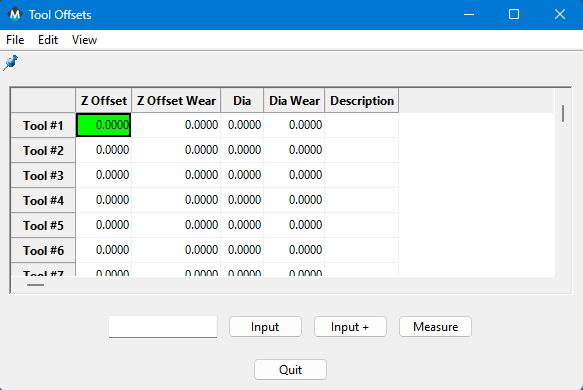
Section titled “Modify the tool table”- Open the tool table: View → Tool Tables.
- Open the editor: Edit → Table Fields.
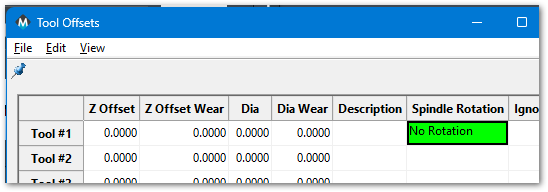
- On the Optional Field tab, add
XOffsetandYOffset(select, then Move Pri), and click OK. - Choose a master tool, measure each other tool’s X/Y distance from it, and enter the offsets.
 12
- 1Testing 1
 1
Tool changer setup
Section titled “Tool changer setup”The MachMotion plugin supports wine-rack and carousel tool changers. Both combine user-defined rack/pocket positions with a pre-programmed change sequence and built-in safety checks. The changer works with the rack parallel to X or Y.
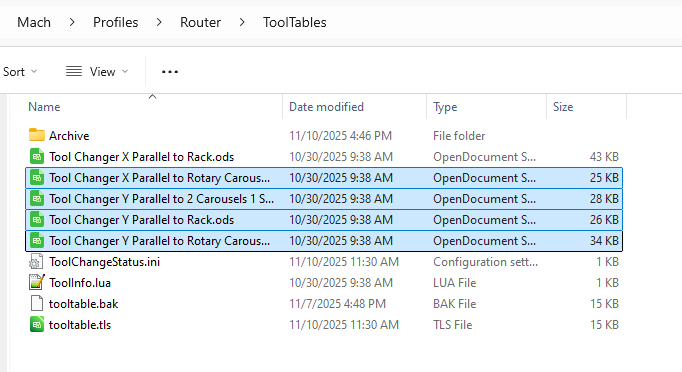
Configure the correct orientation
- Determine which axis the rack/carousel is parallel to (X or Y).
- Open
C:\Mach\Profiles\Router\ToolTables. - Keep the file that matches your orientation; archive the others (optional, keeps things clean).
Set tool pocket positions
- Carefully position a tool in each pocket holder.
- Record the machine-coordinate (G53) position for that pocket.
- Enter each recorded value into the corresponding tool-pocket field.
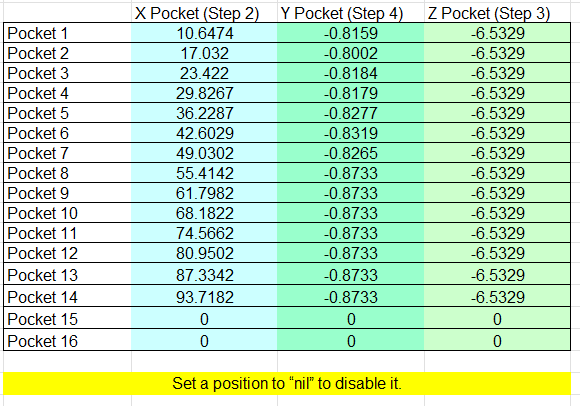
After entering positions you must save the document so the CSV conversion macro runs; otherwise the changed positions have no effect.



Global Monitoring System
Section titled “Global Monitoring System”The Global Monitoring System sets up user alerts/messages and controls I/O based on conditions. The machine watches for specified conditions and takes action when they are met. Open it via Configuration -> Plugins -> Global Monitoring System.
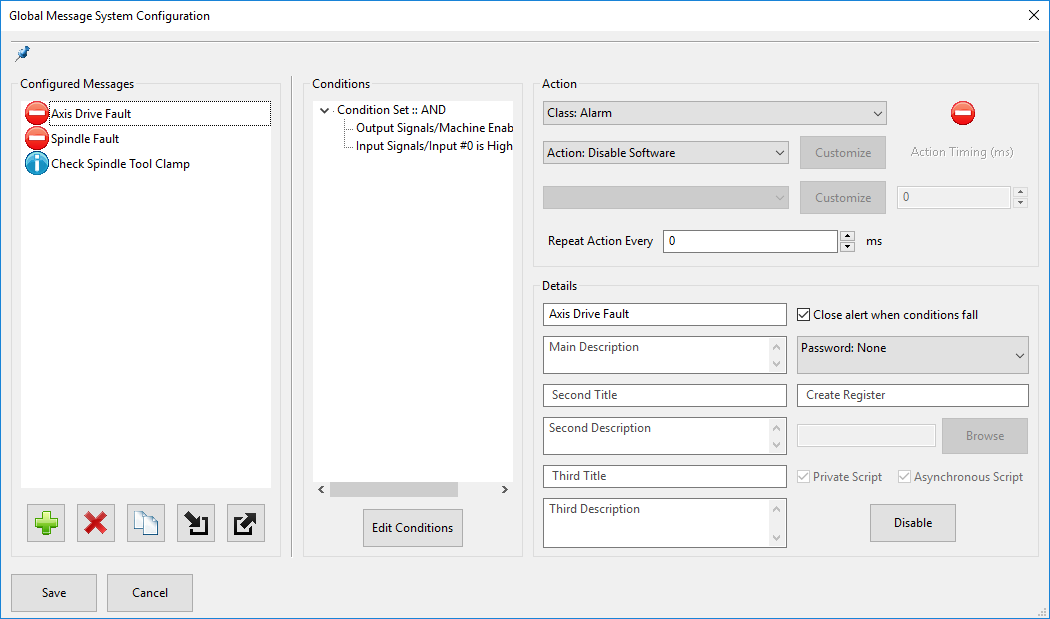
Monitor classes
The system can initiate four classes of action:
- Alarm — emergency conditions; can disable the machine or stop motion; requires operator intervention.
- Warning — non-critical issues; prevents Cycle Start; alerts the operator.
- Notice — informational only; takes no automatic action.
- Process — background control actions; does not alert or block Cycle Start.
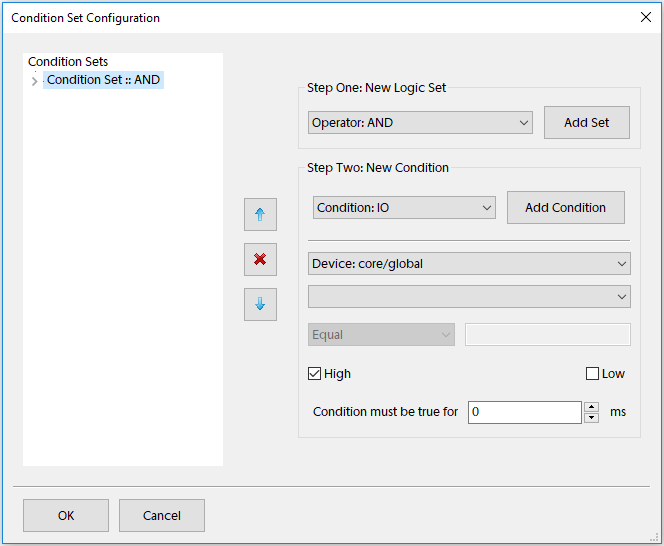
Conditions
Conditions are organized into sets (AND / OR / NOT) and items. Most monitors only need a single AND set. Add an item by choosing a condition type, filling in the details, and pressing Add Condition.
Auto tool changer manual override
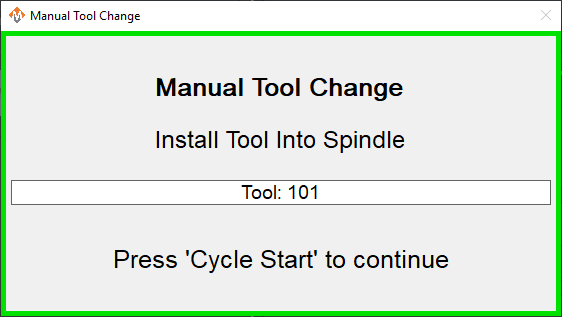
Section titled “Auto tool changer manual override”Used when a tool doesn’t fit the magazine and must be manually loaded/unloaded. Add a
non-pocketed tool range in ToolInfo.lua:
{["Name"] = "Spindle (1) Manual", ["Start"] = 100, ["End"] = 199, ["UseToolPocket"] = 0},Now M6 T100-M6 T199 trigger manual changes.
View and modify MachPro settings
Section titled “View and modify MachPro settings”The reference below is structured data, not a hand-typed table: filter by text, and set your Machine Profile machine type to see only the settings relevant to your machine (e.g. Plasma or Waterjet rows).
| Category | Setting | Constraints | Default | Units | Machine types |
|---|---|---|---|---|---|
| Preferences Backup | Automatic Backup Interval | min:0, max:365 | 10 | Days | all |
| Preferences Dialogs | Enable Confirmation Dialogs | Yes/No | Yes | -- | all |
| Softlimits Startup | Auto Enable SoftLimits | No, Homing, Startup | Homing | -- | all |
| Homing Home All | Home All Button Options | Home Selected Instance, Home All Instances | Home All Instances | -- | all |
| Overrides Feedrate | Feedrate Override Max Percent | min:0, max:300 | 300 | Percent | all |
| Measuring and Offsets Auto Tool Setter | Tool Setter Approach Speed | min:0, max:100000 | 100 | Units/Min | mill, router |
| Spindle Warm Up | Spindle Warm-Up Enabled | -- | No | -- | mill, router, lathe |
| Tool Changer Settings | Tool Change Method | Ignore, Manual, Auto | Manual | -- | mill, router |
| Shape Cutting Plasma | Plasma Error Input | -- | IO$HiCON$P11 Input 1 | -- | plasma |
| Shape Cutting Oxy Fuel | Oxy Fuel Heads | 1,2,3,4 | 4 | -- | plasma |
| Height Controllers Machine Options | Height Controller Device Name | Not Used, SoftHC, RollerHead, ArcPro, NeuronTHC | Not Used | -- | plasma |
| Jet General | Jets Enabled | min:1, max:8 | 1 | -- | waterjet |
| Jet Pump | Jet Pump Off On End Of Program | -- | Yes | -- | waterjet |
| Drill Bank Settings | Drill Bank Number of Drill Banks Enabled | min:0, max:4 | 0 | -- | router |
GCAdapter scripting API
Section titled “GCAdapter scripting API”The GCAdapter rewrites G-code into Mach-compatible G-code. Block functions:
has(passed_word, close_to, thresh) Looks for passed_word in the block; returns true if found. Accepts a full word (X32) or a code (G).
block:has("G53")block:has("M06", "true", .0006)
ModWord(self, old_word, new_word) Replaces old_word with new_word in the current block. Word or code (both must match kind).
block:ModWord("M02","M30")block:ModWord("G43.4","G43")
AddWord(self, new_word) Adds new_word onto the end of the current block.
block:AddWord("M06")
InsertBlockAfter(new_block) Inserts a new block of G-code on the line after the current block.
block:InsertBlockAfter("G00 X2 Y6.77 Z0")
CommentBlock(self, str) Comments out the entire block that exactly matches str (when the match is not already a comment).
block:CommentBlock("M04")